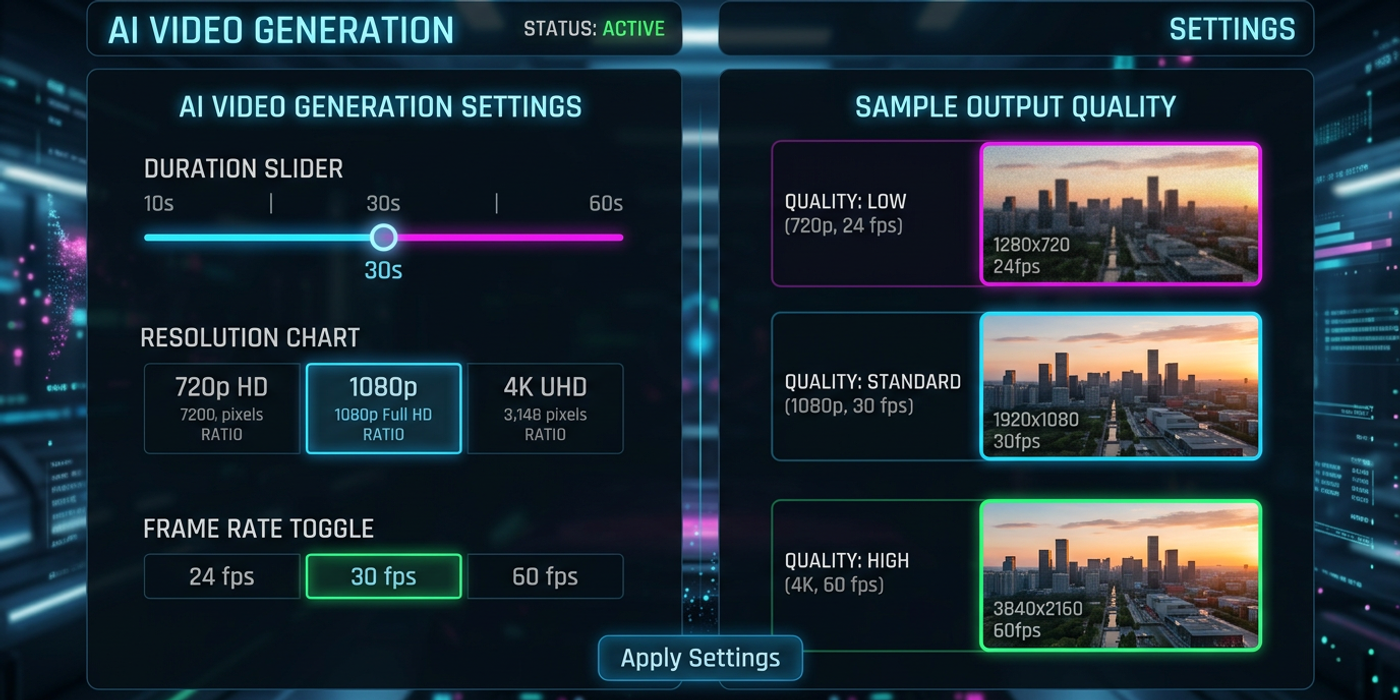
Confused by AI video parameters like duration, resolution, and frame rate? Learn what they mean, how they affect your videos, and choosing the right settings.
What Are AI Video Model Parameters?
When you use an AI video generation tool — Veo 3.1, Kling 3.0, Seedance, or Luma Ray3.2 — you face a panel of settings before you hit generate. Duration. Resolution. Frame rate. Aspect ratio.
These aren't just technical specs. They control what your final video looks like, how much it costs, and how long it takes to generate. Understanding them means getting a usable video on your first try, not burning through credits on test renders.
Duration: How Long Your Video Plays
Duration is the total playback length, measured in seconds.
Most AI video models support between 4 and 20 seconds per clip:
| Model | Max Duration | Max Resolution | |-------|-------------|----------------| | Veo 3.1 | 20s | 1080p | | Kling 3.0 | 10s | 1080p | | Luma Ray3.2 | 20s | 1080p | | Seedance | 8s | 1080p | | Pika 3.0 | 10s | 720p |
Longer durations consume more compute. A 20-second video takes roughly 4x the processing time of a 5-second clip at the same resolution. If you're prototyping, start with shorter clips (4-6 seconds) and extend only after locking in the composition.
Practical tip: Most professional AI content works best in 4-10 second segments. Even Hollywood commercials cut every 3-5 seconds. Don't feel pressured to max out duration.
Resolution: How Sharp Your Video Looks
Resolution defines pixel dimensions. Common options:
- 720p (1280×720) — Good for social media, drafts, and testing - 1080p (1920×1080) — Standard for professional use, most models' max - 4K (3840×2160) — Emerging, mostly via upscaling workflows
Higher resolution means more detail — but also longer generation times and higher cost. A 1080p video contains 2.25x more pixels than a 720p video at the same duration.
Key insight: Not all models deliver equal 1080p quality. Some produce crisp output while others soften at the same spec. Check real-world samples before committing to a model for a client project.
Practical tip: Generate at 1080p for final deliverables. Use 720p for drafts, client review rounds, and prompt testing.
Frame Rate: How Smooth the Motion Looks
Frame rate (fps) controls how many individual images appear per second.
- 24 fps — Cinematic standard. Slightly stuttery motion that feels "filmic." - 30 fps — Broadcast standard. Smooth enough for TV, YouTube, and web content. - 60 fps — High frame rate. Used for sports and action content. Can look "too real" for narrative work.
Most AI video models default to 24 fps because it's the most forgiving — fewer frames per second means smoother generation and fewer artifacts per clip.
The math: A 10-second video at 24 fps needs 240 frames. At 60 fps, it needs 600 frames — more than double. This means longer generation time and more opportunities for visual inconsistencies.
Practical tip: Use 24 fps for narrative content. Use 30 fps for marketing and tutorials. Only use 60 fps for slow-motion or action sequences.
Aspect Ratio: Your Video's Shape
Aspect ratio describes width-to-height proportions.
- 16:9 — Widescreen, standard for YouTube, presentations - 9:16 — Vertical, standard for TikTok, Reels, Shorts - 1:1 — Square, for Instagram feed posts - 21:9 — Ultra-wide, cinematic widescreen
Most AI video models let you select the aspect ratio before generation, so plan your output format based on where the video will be published.
How These Parameters Work Together
Duration, resolution, and frame rate are interdependent. You cannot max all three simultaneously. A model that supports 20 seconds at 1080p and 24 fps may only support 10 seconds at 1080p and 60 fps — the total frame count (duration × fps) has a hard ceiling.
The golden rule for parameter selection:
1. Start with your aspect ratio (where will this be published?) 2. Set your frame rate (cinematic or broadcast?) 3. Choose your duration (how long does the message need?) 4. Pick your resolution (how sharp does it need to look?)
If generation is too slow, adjust in this order: lower resolution first, then reduce duration, then drop frame rate.
Using These Settings in Cooly Studio
Cooly Studio gives you direct control over all these parameters. The interface shows trade-offs in real time — pick a longer duration and see estimated generation time adjust. This makes it easy to experiment without wasting credits.
For Hong Kong creators on tight deadlines, understanding these parameters means you can plan your production pipeline efficiently. Budget your timeline based on resolution and duration — a 15-second 1080p ad takes longer than a 6-second 720p draft.
Frequently Asked Questions
Q: What's the best resolution for AI-generated videos? A: Generate at 1080p for professional use. It delivers the best balance of quality and speed. Use 720p for drafts.
Q: Can I create 4K AI videos? A: Most models don't natively generate 4K yet. The common workflow is to generate at 1080p and upscale with an AI upscaler.
Q: Should I always use 60 fps? A: No. 60 fps doubles the frame count, increasing generation time and artifacts. Use 24 fps for cinematic content and 30 fps for marketing.
Q: Why do my videos look different at the same settings across models? A: Each model interprets prompts differently. Veo 3.1 leans photorealistic, while Kling 3.0 handles stylized animation better. Same settings, different results.
Q: How long does a 10-second 1080p video take to generate? A: Expect 2-5 minutes on average. Shorter durations and lower resolutions generate much faster.
Q: What aspect ratio should I use for Hong Kong social media? A: Use 9:16 for TikTok, Reels, and Shorts. Use 16:9 for YouTube and website headers. Plan your aspect ratio before generating.
Q: Does higher resolution always mean better quality? A: Not necessarily. A smooth 720p video from a consistent model can look better than a jittery 1080p video from one with poor temporal stability.