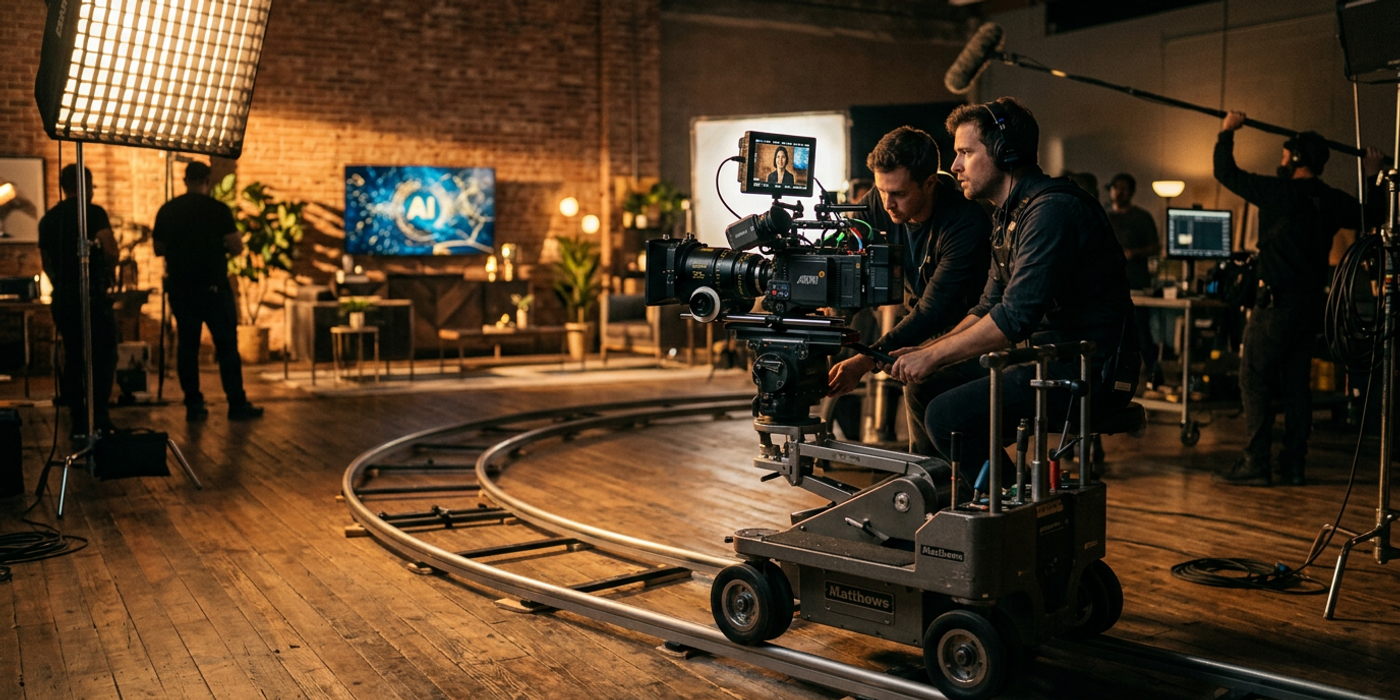
Master cinematic AI video with Veo 3.1 — camera motion, lighting control, and prompt techniques that turn AI clips into professional-grade footage.
Veo 3.1 changed the game for AI video in 2026. But getting cinematic quality — the kind that looks like it was shot on an Arri Alexa with a proper DP — requires more than just typing a prompt. This guide covers the advanced techniques that separate amateur AI clips from portfolio-ready footage.
Understanding Veo 3.1's Cinematic Capabilities
Veo 3.1 from Google DeepMind handles motion physics, lighting consistency, and camera movement with a level of realism that makes it viable for commercial production. The model supports up to 1080p resolution at 24fps with clips up to 60 seconds. What sets it apart for cinematic work is its understanding of camera language — dolly shots, rack focuses, and panning movements all render with natural physics. The model also handles selective depth of field, meaning you can prompt for shallow depth-of-field close-ups and get genuine bokeh rather than flat background blur.
Writing Prompts for Cinematic Results
Prompt structure is where cinematic quality is won or lost. Veo 3.1 responds well to structured prompts that include camera specs, lighting direction, and lens characteristics.
The Five-Element Prompt Structure
For consistent cinematic results, structure every prompt around five elements: subject and action, camera movement, lens characteristics, lighting setup, and color grade.
A weak prompt: "A person walking through a market at golden hour"
A cinematic prompt: "A woman in her late 30s walks through a wet Hong Kong wet market at golden hour, camera slowly dollies backward tracking her movement, shot on 35mm at f/1.8 with shallow depth of field, warm golden backlight from the setting sun with cool blue fill from the market's fluorescent lights, cinematic color grade with teal shadows and warm highlights, 24fps"
The difference is immediately visible. Veo 3.1's training data included enough cinematography references that it can render specific lens and lighting characteristics when you describe them precisely.
Camera Movement Vocabulary
Veo 3.1 understands these camera movements reliably: dolly in and out, tracking shots, crane up and down, pan and tilt, handheld, steadicam, and rack focus. For added realism, combine movements — a dolly-in with a slight tilt-up creates a dramatic reveal that feels like a real camera operator's work.
Controlling Lighting and Atmosphere
Lighting in Veo 3.1 is where the model genuinely excels. The key is specifying light sources and their relationship to the subject.
Lighting Patterns That Work
Rembrandt lighting — Key light at 45 degrees, slightly above eye level. Prompt: "Rembrandt lighting with a single key light from camera-left, deep shadows on the right side of the face"
Gold and blue — Warm practical light combined with cool ambient fill. This is the most common cinematic palette. Prompt: "Warm candlelight key from the right, cool blue moonlight fill from the left, high contrast ratio"
Backlighting — Subject lit from behind with the foreground in silhouette. Prompt: "Strong golden backlight rimming the subject's hair and shoulders, foreground in shadow, lens flare"
Atmospheric Effects
Add atmospheric elements to create depth: "haze machine fog in the background catching the light," "rain falling in sheets with visible droplets," "dust particles floating in shafts of light." These environmental cues signal the model to render volumetric depth, which dramatically improves the cinematic feel.
Managing Motion and Composition
Describe subject placement within the frame using compositional language: "subject positioned on the left third of frame, looking into the right third, negative space on the right." This tells the model to maintain composition throughout the clip rather than centering the subject statically.
Think about the visual flow of the entire clip. A common cinematic technique is to start wide, then dolly in to a close-up. Veo 3.1 handles this progression if you prompt it as a sequence: "Opens on a wide establishing shot, camera slowly pushes into a medium close-up over 5 seconds."
Post-Processing for Polish
Raw Veo 3.1 output benefits from light post-processing. Run the generated clip through Topaz Video AI for upscaling to 4K if needed, or use DaVinci Resolve's color grading tools to match the clip to your project's color space. A subtle film grain overlay (Kodak 2383 emulation works well) can mask remaining digital artifacts and give the footage a more organic texture.
Frequently Asked Questions
Q: What's the maximum resolution Veo 3.1 supports for cinematic output? A: Veo 3.1 generates up to 1080p at 24fps. For 4K delivery, upscale with Topaz Video AI or similar tools.
Q: Can Veo 3.1 maintain consistent characters across multiple clips? A: Not natively for video. Generate a reference image first, then use it as a seed for video generation.
Q: How long does Veo 3.1 take to generate a 30-second cinematic clip? A: Expect 3-8 minutes per clip. Complex scenes with multiple characters take longer.
Q: Does Veo 3.1 handle anamorphic aspect ratios? A: Yes. Prompt for "2.35:1 aspect ratio" or "anamorphic 2.39:1" and the model renders the appropriate letterbox composition.
Q: What's the best way to get consistent lighting across multiple clips? A: Use the same lighting prompt structure for every clip, then color-grade all clips together in post-production.
Q: Can Veo 3.1 generate text overlays or title cards? A: No. Text generation is unreliable in video models. Add titles and overlays in post-production.
Q: How does Veo 3.1 compare to Kling 3.0 for cinematic quality? A: Veo 3.1 handles lighting and camera movement more naturally. Kling 3.0 excels at stylized and animated content.
Q: Is Veo 3.1 suitable for Hong Kong commercial production? A: Yes. Hong Kong agencies use Veo 3.1 for real estate walkthroughs, product launch videos, and social media advertising campaigns.